
Time-Travel Debugging
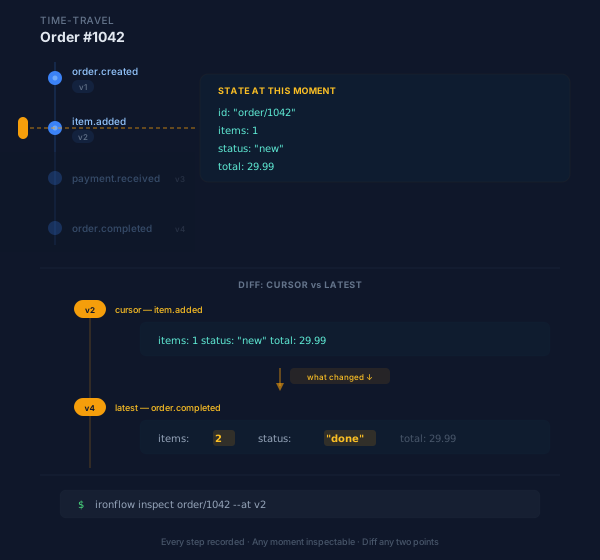
Time-travel debugging lets you inspect a workflow run’s state at any historical point in time. The system reconstructs snapshots on the fly by replaying audit events up to the requested timestamp — no pre-computed snapshots are stored.
Prerequisites
Time-travel requires recording to be enabled on the function. Only runs from recording-enabled functions have the audit events needed for state reconstruction.
import { ironflow } from "@ironflow/node";
const processOrder = ironflow.createFunction(  {    id: "process-order",    recording: true, // enable recording, it is disabled by default    recordingRetention: "90d",    triggers: [{ event: "order.placed" }],  },  async ({ event, step }) => {    const validated = await step.run("validate", async () => {      return validateOrder(event.data);    });    const charged = await step.run("charge", async () => {      return chargeCard(validated);    });    return { validated, charged };  },);
var ProcessOrder = ironflow.CreateFunction(ironflow.FunctionConfig{ ID: "process-order", Recording: true, RecordingRetention: "90d", Triggers: []ironflow.Trigger{{Event: "order.placed"}},}, func(ctx ironflow.Context) (any, error) { validated, err := ironflow.Run(ctx, "validate", func() (any, error) { return validateOrder(ctx.Event.Data) }) if err != nil { return nil, err }
charged, err := ironflow.Run(ctx, "charge", func() (any, error) { return chargeCard(validated) }) if err != nil { return nil, err }
return map[string]any{"validated": validated, "charged": charged}, nil})Dashboard
Open a run’s detail page. When the function has recording enabled, a timeline scrubber appears at the top of the page.
- Scrub to a point in time — click or drag on the timeline to see the run’s state at that moment. The step list updates to show which steps had completed, their outputs, and the run’s status.
- Ghost steps — steps that had not yet executed at the selected time appear dimmed. This makes it easy to see what was still ahead.
- Diff view — select two timestamps on the timeline to compare the run’s state between them. The diff highlights which step outputs changed (useful for spotting hot-patches or injected values).
- Return to live — click the Live button to leave time-travel mode and return to the real-time view.
TUI
The ironflow inspect command supports time-travel via --at and --replay flags.
Frozen snapshot
Inspect the run’s state at a specific timestamp:
ironflow inspect run_abc123 --at "2024-01-15T10:30:00Z"The TUI renders the run as it existed at that moment. Steps completed after the timestamp appear as ghost steps (dimmed).
Frame-by-frame replay
Step through the run’s audit events one at a time:
ironflow inspect run_abc123 --replayUse --all-events to include step.started events (omitted by default to reduce noise):
ironflow inspect run_abc123 --replay --all-eventsKey bindings
| Key | Action |
|---|---|
→ or l |
Next frame (next audit event) |
← or h |
Previous frame |
j or ↓ |
Next step in list / scroll detail |
k or ↑ |
Previous step in list / scroll detail |
g |
Go to first frame |
G |
Go to last frame |
Tab |
Switch between steps and detail panels |
q |
Quit |
SDK API
Get run state at a timestamp
Reconstruct the full run state as it existed at a specific point in time.
import { createClient } from "@ironflow/node";
const client = createClient({ serverUrl: "http://localhost:9123" });
const state = await client.getRunStateAt("run_abc123", new Date("2024-01-15T10:30:00Z"));
console.log(state.runId);    // "run_abc123"console.log(state.status);   // "running" | "completed" | "failed" | ...console.log(state.steps);    // Array<{ id, name, status, output }> — completed steps at that momentconsole.log(state.timestamp); // ISO string of the requested timestamp
client := ironflow.NewClient(ironflow.ClientConfig{ ServerURL: "http://localhost:9123",})
state, err := client.GetRunStateAt(ctx, "run_abc123", time.Date(2024, 1, 15, 10, 30, 0, 0, time.UTC))if err != nil { log.Fatal(err)}
fmt.Println(state.Status) // "running", "completed", "failed", ...for _, step := range state.Steps { fmt.Printf(" %s: %v\n", step.Name, step.Output)}Get run timeline
Fetch the full list of audit events for a run. This is what powers the dashboard’s timeline scrubber.
const events = await client.getRunTimeline("run_abc123");
for (const event of events) { console.log(`${event.timestamp} ${event.eventType} ${event.stepName}`);}events, err := client.GetRunTimeline(ctx, "run_abc123")if err != nil { log.Fatal(err)}
for _, event := range events { fmt.Printf("%s %s %s\n", event.Timestamp, event.EventType, event.StepID)}Get step output at a timestamp
Retrieve a specific step’s output as it existed at a point in time. Useful for checking what a step returned before a hot-patch was applied.
const output = await client.getStepOutputAt(  "run_abc123",  "step_001",  new Date("2024-01-15T10:30:00Z"),);
console.log(output.stepId); // "step_001"console.log(output.output); // the step output at that timeconsole.log(output.timestamp); // ISO string of the requested timestampoutput, err := client.GetStepOutputAt(ctx, "run_abc123", "step_001", time.Date(2024, 1, 15, 10, 30, 0, 0, time.UTC))if err != nil { log.Fatal(err)}
fmt.Printf("Output: %v (patched: %t)\n", output.Output, output.Patched)Limitations
- Recording required — time-travel is only available for functions with
recording: true. Runs created before recording was enabled have no audit events to reconstruct from. - Query-time reconstruction — state snapshots are reconstructed on the fly by replaying audit events. There are no pre-computed snapshots. For runs with a very large number of audit events, reconstruction may take longer.
- Retention applies — audit events are subject to the function’s
recordingRetentionpolicy. Once events are cleaned up, time-travel for those runs is no longer possible.
What’s Next?
- Audit Log — understand the audit events that power time-travel
- Scoped Injection — pause, modify, and resume running workflows
- Debugging — TUI debugger basics